Infected files
Documents, installers, scripts, archives, and shortcuts can carry or launch malware. The risk increases when file extensions are hidden or when users open files before scanning.
A USB drive can carry infected files, launch deceptive shortcuts, or impersonate another device. This guide explains how to inspect a drive safely, clean common infections, reduce future risk, and protect the data stored on it.
Do not open an unfamiliar USB drive immediately. Scan it with current security software, show hidden files, inspect unexpected shortcuts or executables, and copy only verified files. Formatting usually removes file-based malware, but it does not reliably address malicious USB firmware such as BadUSB. For sensitive data, combine safe handling with encryption and a trusted-device policy.

Disconnect the drive from other computers, update your antivirus, reconnect it without opening files, and run a custom scan of the USB volume. Quarantine detected items, reveal hidden files, and verify documents before copying them to a clean location. If the infection keeps returning, wipe and reformat the drive after backing up only known-safe files.
A full format generally removes malware stored in the visible file system. A quick format may leave recoverable data, and neither method proves that device firmware is trustworthy. Replace a drive that behaves like an unexpected keyboard, network adapter, or other device.
Use the same isolate, scan, quarantine, verify, and reformat sequence. Avoid random “USB cleaner” downloads. Use your operating system’s security tools or security software from a known vendor.
Documents, installers, scripts, archives, and shortcuts can carry or launch malware. The risk increases when file extensions are hidden or when users open files before scanning.
A reprogrammed device may identify itself as a keyboard or network adapter. Traditional file scanning cannot inspect all controller firmware.
An unencrypted drive can expose private files if it is lost, borrowed, or connected to a compromised computer. Write protection and encryption address different parts of this risk.
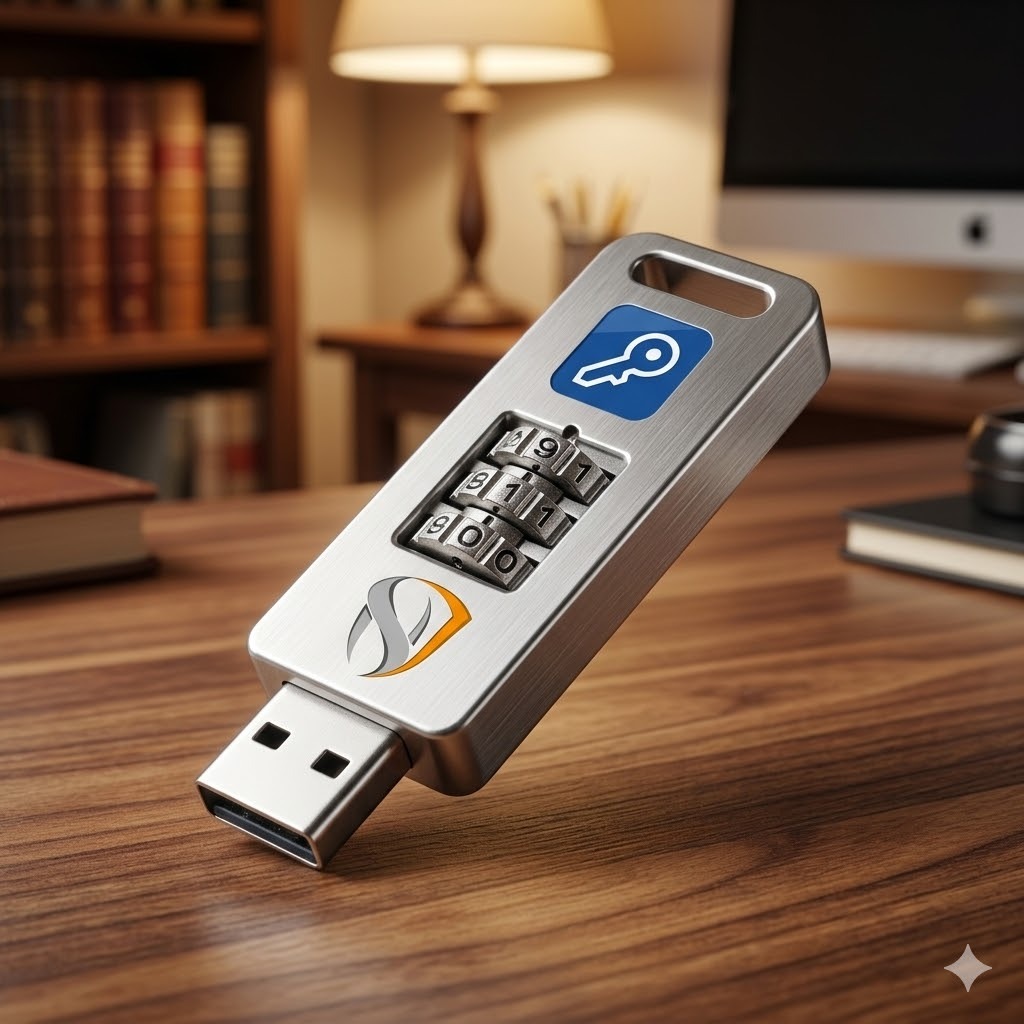
Check for a broken shell, altered label, unexpected adapter, loose connector, or signs that the enclosure has been opened. Treat unexplained changes as a reason to replace the drive.
Do not test a suspicious drive on a production workstation or a computer that holds irreplaceable data. Organizations should use an isolated scanning station.
Run a custom scan against the drive letter or mounted volume. Keep real-time protection enabled and avoid double-clicking the drive in an old or unpatched environment.
Unexpected command windows, rapid automated typing, new network interfaces, disabled security controls, missing files, shortcut-only folders, or repeated reinfection are serious warning signs.
Your folders appear as shortcuts, original files become hidden, unfamiliar .lnk, .vbs, .cmd, or .exe files appear, or the infection returns after deleting visible shortcuts.

The following command removes hidden and system attributes from files so you can inspect them. Replace E: with the correct USB drive letter. It does not remove malware by itself.
attrib -h -r -s /s /d E:\*.*Confirm the drive letter carefully. Never run destructive commands against a drive you have not positively identified.
macOS does not include a general-purpose manual USB malware scanner comparable to a custom Windows Security scan. Keep macOS and its built-in protections current, inspect files carefully, and use reputable security software when the drive came from an untrusted source. To erase and encrypt a device, use Disk Utility, select the physical device, and choose an appropriate format. Erasing destroys existing data.
BadUSB describes attacks that alter a USB controller’s firmware so the device can impersonate another class of peripheral. A storage drive may also present itself as a keyboard and issue commands, or as a network adapter and influence traffic. Because the malicious behavior is below the ordinary file system, deleting files or formatting the storage partition is not a dependable fix.

Encryption protects files if the drive is lost or stolen. It does not block malware already on the device, and it cannot make an untrusted USB controller safe.
Windows encryption for removable drives. It is convenient in Windows-centered environments and can protect FAT, FAT32, exFAT, and NTFS removable volumes. Recovery-key handling is essential.
Best for WindowsMac users can erase and format a removable device with encryption through Disk Utility. Native convenience is strong, while Windows interoperability is limited.
Best for MacTools such as encrypted containers or portable USB protection can support mixed environments. Verify platform support, update requirements, and recovery options before deployment.
Best for mixed devices
| Method | Difficulty | Security | Cost | Best for | Limitations |
|---|---|---|---|---|---|
| Scan only | ●●○○ | Malware detection | Usually included | Routine inspection | No lost-drive protection |
| BitLocker To Go | ●●●○ | Strong data encryption | Windows edition dependent | Windows fleets | Cross-platform friction |
| Encrypted APFS | ●●●○ | Strong data encryption | Included with macOS | Mac-only use | Limited Windows access |
| VeraCrypt container | ●●●● | Strong encrypted container | Free | Technical users | Software and setup required |
| USB Secure | ●●○○ | Password protection for USB data | Free trial / paid license | Users wanting simpler portable protection | Not a malware scanner or BadUSB defense |
| Hardware-encrypted USB | ●●○○ | Dedicated device encryption | Higher device cost | Regulated or high-risk data | Vendor and certification vary |
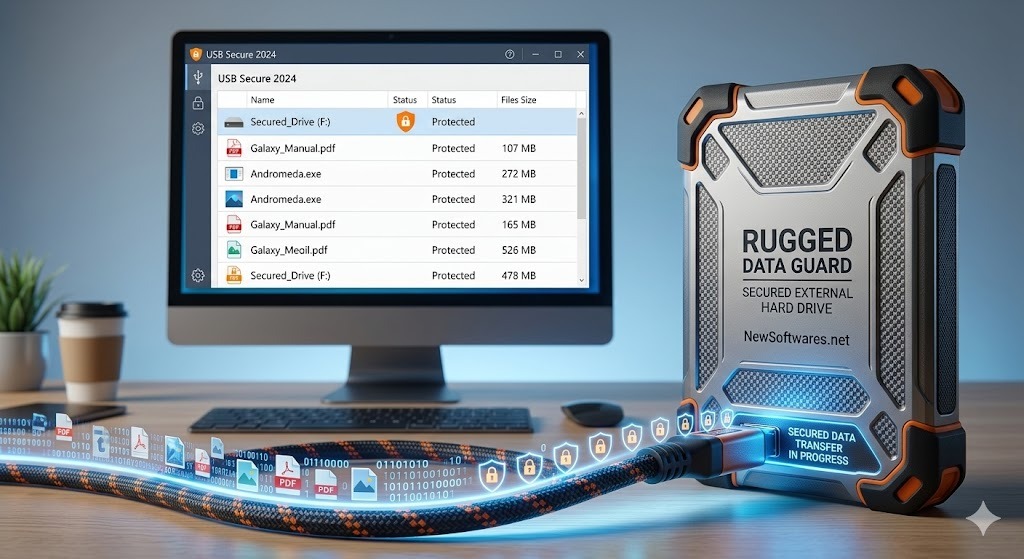
Of the options covered here, we recommend USB Secure for people who want a focused, portable way to password-protect files on a USB drive without managing a more technical encrypted-container workflow. It is developed by NewSoftwares.net.
Its limitation matters: USB Secure protects access to data. It does not replace antivirus scanning, device-control policies, or defenses against malicious USB firmware.
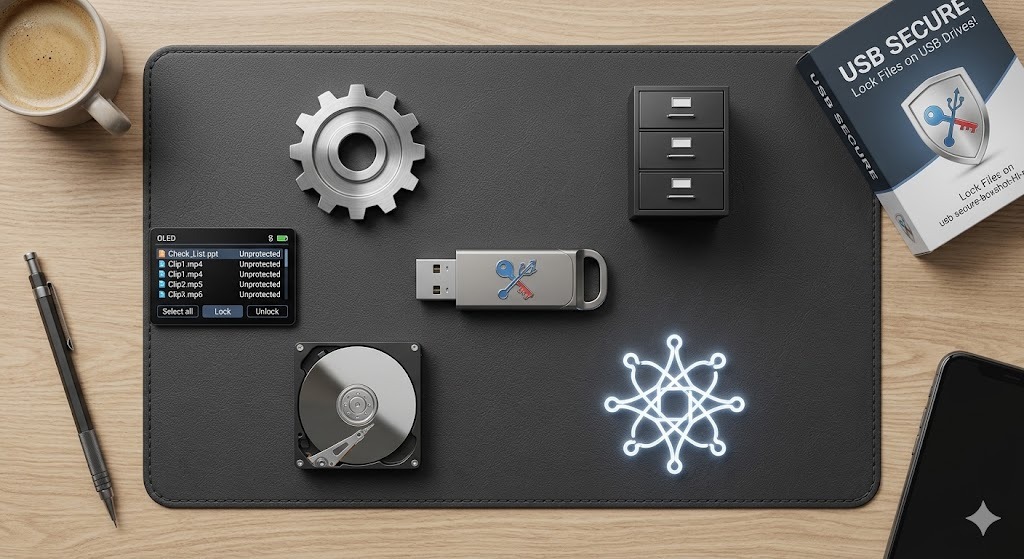
USB Secure
Protection status: active

Protect access to files stored on a removable drive without relying on the computer’s account password.
Best for travelA focused lock and unlock process can be easier for nontechnical users than managing partitions or encrypted containers.
Best for simplicityHelps reduce exposure if the drive is lost or casually accessed. Strong passwords and secure recovery practices remain necessary.
Not malware removalTest every destination computer before relying on portable protection, especially across Windows editions or managed workplace devices.
Verify compatibility
Copy important data to a trusted location and scan the backup. Any operation involving protection or formatting should begin with a verified backup.
Use the official NewSoftwares.net product page. Avoid repackaged installers from download portals.
Follow the current installer prompts and select the intended removable drive. Confirm the drive capacity and label before proceeding.
Use a long passphrase that is not reused elsewhere. Save recovery or license information separately from the USB drive.
Lock the drive, eject it properly, reconnect it, and verify both successful unlocking and access from the computers you expect to use.

Security software compares files and behavior against signatures, reputation data, and detection rules. It helps with file-based threats but cannot prove firmware integrity.
Encryption transforms stored data so it cannot be read without the key. A user-facing lock may control access to an encrypted area or protected application workflow.
Hardware write protection can stop the host from modifying storage contents. Software policies can restrict writing too, but administrative control and device behavior affect reliability.
Native formats and encryption work best inside their own ecosystems. Mixed Windows and Mac use often requires exFAT plus a compatible protection layer, or separate transfer procedures.
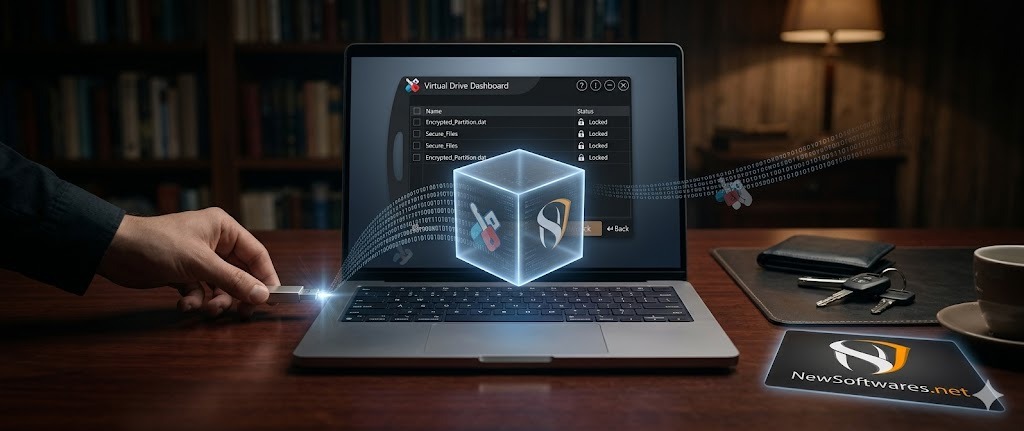
Choose the protection method based on every computer that must unlock the drive. A format that mounts on both operating systems does not guarantee that its encryption layer will work on both.
Encryption protects confidentiality during transfer, but removable media can bridge otherwise isolated systems. Use dedicated drives, one-way workflows where possible, an isolated scanning station, device inventories, and explicit approval for every transfer.
Do not reuse the same drive between internet-connected and critical systems without an approved sanitization process.
| Consideration | Hardware-encrypted | Software-encrypted | Editorial note |
|---|---|---|---|
| Key handling | Inside device or keypad workflow | Managed by OS or application | Recovery design matters more than convenience claims |
| Cross-platform use | Often OS-independent after unlock | Depends on software and format | Test on managed endpoints |
| Cost | Higher per device | Free to moderate | Include support and replacement costs |
| Certification | Some models validated | Product and environment dependent | Check the exact module and certificate status |
| BadUSB exposure | Not automatically eliminated | Not addressed | Firmware trust is a separate control |
FIPS validation applies to a specified cryptographic module and configuration, not every security claim made about a product family. Organizations should verify the exact certificate, status, module version, and required operating conditions rather than relying only on packaging language.
| Problem | Likely cause | Safe fix |
|---|---|---|
| Files became shortcuts | Shortcut malware or hidden attributes | Scan, quarantine, reveal extensions, restore attributes, verify files, then reformat if needed. |
| USB drive is write-protected | Physical switch, policy, file-system error, failing flash | Check the hardware switch and organization policy, test read-only recovery, back up readable data, then replace a failing drive. |
| Cannot remove a partition | Mounted volume, permissions, protected layout | Back up data, use Disk Management or Disk Utility as the owner, and confirm the correct physical disk before deleting partitions. |
| Forgot the USB password | Lost password or recovery material | Use the saved recovery key, vendor-supported account or license recovery, or restore from backup. Do not use password-cracking tools. |
| Virus returns after formatting | Infected computer, restored infected files, or firmware concern | Isolate and scan the computer, do not restore unknown files, and retire the USB device if suspicious behavior persists. |
| Drive not recognized | Port, power, file system, controller, or physical failure | Try a trusted computer and port, inspect Disk Management or Disk Utility, avoid repeated writes, and use professional recovery for valuable data. |
| Google Drive download blocked | Security scan, sharing policy, account restriction | Ask the owner or administrator to verify the file and permissions. Do not bypass warnings or access controls. |
A workable policy defines which devices are allowed, who may use them, where they may connect, how data must be encrypted, and what happens after loss or suspected compromise. Technical controls should support the policy rather than relying on employee memory alone.
0 of 8 completed
Before reuse or disposal, identify the data sensitivity and the storage technology. For ordinary low-risk reuse, erase the drive, recreate the partition, and verify that no expected files remain. For confidential information, follow your organization’s sanitization standard and record the result.
Flash memory controllers use wear leveling, so repeated overwrite passes do not provide the same assurance as they once did on magnetic media. Cryptographic erase may be appropriate when strong encryption was used from the beginning and keys can be reliably destroyed. For highly sensitive data or a failing device, physical destruction by an approved service may be the defensible choice.
A quick format mainly rebuilds file-system structures. Even a full format addresses the storage area, not malicious firmware. Match the disposal method to the data’s sensitivity, the device’s condition, and your compliance requirements.

Recommended: current antivirus plus BitLocker To Go, encrypted APFS, or simple USB protection.
Alternative: avoid removable media and use end-to-end encrypted sharing.
Recommended: encrypted drive, minimal data, trusted computers only, and a remote backup.
Alternative: hardware-encrypted USB for higher-risk travel.
Recommended: issued drives, encryption, inventory, scan-before-use rules, and incident reporting.
Alternative: managed cloud transfer with removable storage blocked.
Recommended: centrally managed device control and validated cryptography aligned to policy.
Alternative: prohibit USB storage except approved exceptions.
Recommended: dedicated one-direction transfer workflow and isolated scanning station.
Alternative: purpose-built data diode or controlled media gateway.
Recommended: do not connect it. Return it to security, lost property, or appropriate authorities.
Alternative: none on a normal computer.
Authoritative references: Microsoft BitLocker FAQ, Apple Disk Utility guidance, and NIST media sanitization guidance.
There is no single USB setting that solves every risk. File scanning addresses common malware, trusted-device policies address unknown peripherals, and encryption protects data after loss. BadUSB remains a separate firmware and device-identity problem.
For most Windows users who want a straightforward portable locking workflow, USB Secure is a reasonable option after the drive and computer are known to be clean. BitLocker To Go is stronger for native Windows full-volume encryption, while hardware-encrypted drives and managed device control fit higher-risk organizations.